> ## Documentation Index
> Fetch the complete documentation index at: https://arize-ax.mintlify.site/docs/llms.txt
> Use this file to discover all available pages before exploring further.
# Improve your agent
> Build a dataset from failing traces, fix your prompt in the Playground, and prove the change works with experiments before you ship it.
In the previous guide, your [evaluator](/docs/ax/evaluate/create-evaluators) revealed a pattern, and [Signal](/docs/ax/get-started/get-started-managed-agent) may have filed the same failure as an issue with a proposed change. Take a common one: your agent asserts things it cannot back up with a source, because the system prompt says "be helpful" and never tells the agent to stick to retrieved context or say "I don't know."
Whatever failure you found, the workflow is the same. Start from the traces your evaluator flagged, often the same runs Signal linked as evidence. Fix the prompt in the Playground using the exact inputs that went wrong, then run the new prompt across a full dataset. A proposed fix, whether yours or Signal's, is a hypothesis until an experiment confirms it improves your evaluator's scores.
 This is **Part 4** of 4: [Instrument](/docs/ax/get-started/get-started-tracing) → [Signal](/docs/ax/get-started/get-started-managed-agent) → [Evaluate](/docs/ax/get-started/get-started-evaluations) → **[Improve](/docs/ax/get-started/get-started-improve-your-agent)**. You should have [evaluation](/docs/ax/evaluate/run-evals-on-traces#viewing-results) scores from [Evaluate your agent](/docs/ax/get-started/get-started-evaluations) on the same project. Those scores are what you compare across experiments.
## Choose how you want to work
Use [Arize Skills](/docs/ax/skills/overview) to have your coding agent run improvement workflows from your editor, [Alyx](/docs/ax/alyx) for a conversational approach inside the Arize platform, the UI for a hands-on step-by-step experience, or **Code** to run programmatically.
In each path, you'll build a dataset from failing traces, iterate on your prompt, and compare experiments before shipping.
Use [Arize Skills](/docs/ax/skills/overview) with your coding agent to run the same workflow from your editor. The example prompts below are what you type to your agent. The skill loads automatically and handles the rest. Install the skills plugin and follow [Set up Arize with AI coding agents](/docs/ax/set-up-with-ai-assistants) for authentication and CLI setup.
### Step 1: See evaluation results on your traces
[`arize-trace`](https://github.com/Arize-ai/arize-skills/blob/main/skills/arize-trace/SKILL.md)
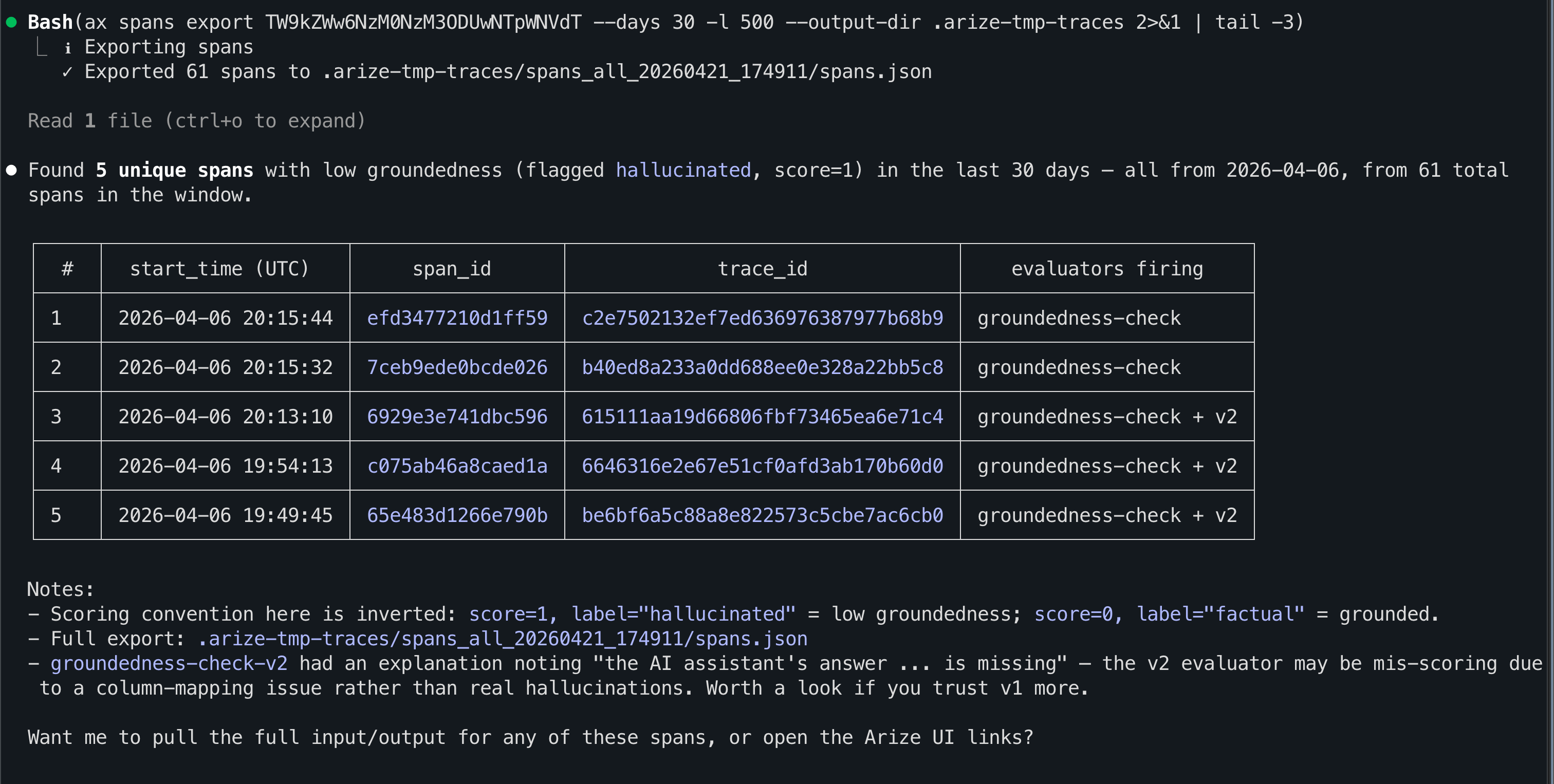
Spans include labels once an [eval task](/docs/ax/evaluate/run-evals-on-traces#create-a-task) has run; see [Viewing results](/docs/ax/evaluate/run-evals-on-traces#viewing-results) in the tracing UI.
For example, you might say:
> Export spans from my project where my evaluator failed this week
This is **Part 4** of 4: [Instrument](/docs/ax/get-started/get-started-tracing) → [Signal](/docs/ax/get-started/get-started-managed-agent) → [Evaluate](/docs/ax/get-started/get-started-evaluations) → **[Improve](/docs/ax/get-started/get-started-improve-your-agent)**. You should have [evaluation](/docs/ax/evaluate/run-evals-on-traces#viewing-results) scores from [Evaluate your agent](/docs/ax/get-started/get-started-evaluations) on the same project. Those scores are what you compare across experiments.
## Choose how you want to work
Use [Arize Skills](/docs/ax/skills/overview) to have your coding agent run improvement workflows from your editor, [Alyx](/docs/ax/alyx) for a conversational approach inside the Arize platform, the UI for a hands-on step-by-step experience, or **Code** to run programmatically.
In each path, you'll build a dataset from failing traces, iterate on your prompt, and compare experiments before shipping.
Use [Arize Skills](/docs/ax/skills/overview) with your coding agent to run the same workflow from your editor. The example prompts below are what you type to your agent. The skill loads automatically and handles the rest. Install the skills plugin and follow [Set up Arize with AI coding agents](/docs/ax/set-up-with-ai-assistants) for authentication and CLI setup.
### Step 1: See evaluation results on your traces
[`arize-trace`](https://github.com/Arize-ai/arize-skills/blob/main/skills/arize-trace/SKILL.md)
Spans include labels once an [eval task](/docs/ax/evaluate/run-evals-on-traces#create-a-task) has run; see [Viewing results](/docs/ax/evaluate/run-evals-on-traces#viewing-results) in the tracing UI.
For example, you might say:
> Export spans from my project where my evaluator failed this week
 ### Step 2: Create a dataset
[`arize-dataset`](https://github.com/Arize-ai/arize-skills/blob/main/skills/arize-dataset/SKILL.md)
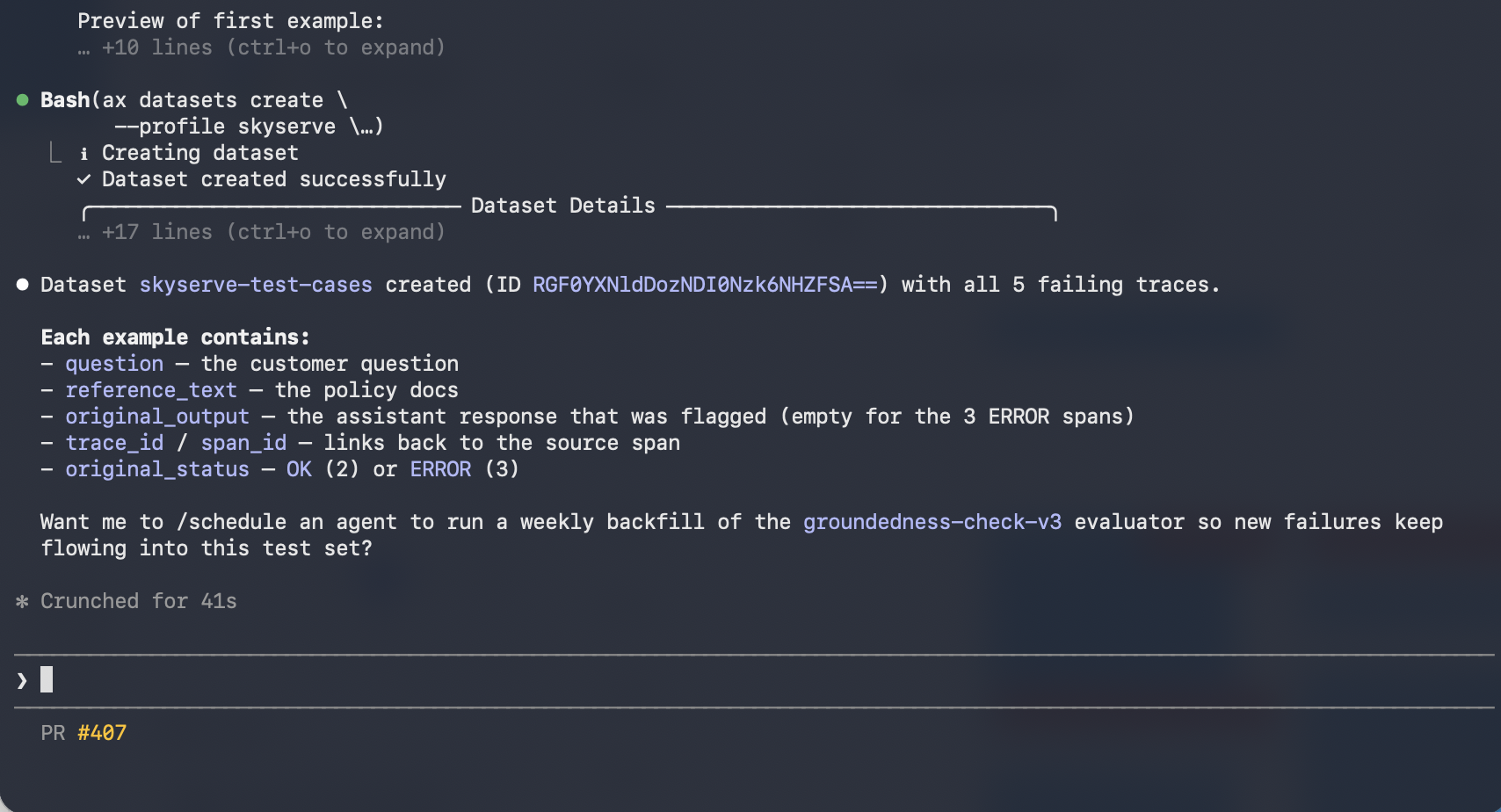
For example, you might say:
> Create a test dataset from those failing traces
### Step 2: Create a dataset
[`arize-dataset`](https://github.com/Arize-ai/arize-skills/blob/main/skills/arize-dataset/SKILL.md)
For example, you might say:
> Create a test dataset from those failing traces
 ### Step 3: Improve the system prompt
[`arize-prompt-optimization`](https://github.com/Arize-ai/arize-skills/blob/main/skills/arize-prompt-optimization/SKILL.md)
For example, you might say:
> Extract the system prompt from the failing spans and generate an improved version. Use my evaluator's labels and explanations as signal for what to fix.
### Step 3: Improve the system prompt
[`arize-prompt-optimization`](https://github.com/Arize-ai/arize-skills/blob/main/skills/arize-prompt-optimization/SKILL.md)
For example, you might say:
> Extract the system prompt from the failing spans and generate an improved version. Use my evaluator's labels and explanations as signal for what to fix.
 ### Step 4: Run both prompts as experiments
[`arize-experiment`](https://github.com/Arize-ai/arize-skills/blob/main/skills/arize-experiment/SKILL.md)
Reuse the same [evaluators](/docs/ax/evaluate/create-evaluators) you trust in production; see [Run evals on experiments](/docs/ax/evaluate/run-evals-on-experiments).
For example, you might say:
> Run both prompt versions (original and the updated one) against the dataset and compare my evaluator's scores.
### Step 4: Run both prompts as experiments
[`arize-experiment`](https://github.com/Arize-ai/arize-skills/blob/main/skills/arize-experiment/SKILL.md)
Reuse the same [evaluators](/docs/ax/evaluate/create-evaluators) you trust in production; see [Run evals on experiments](/docs/ax/evaluate/run-evals-on-experiments).
For example, you might say:
> Run both prompt versions (original and the updated one) against the dataset and compare my evaluator's scores.
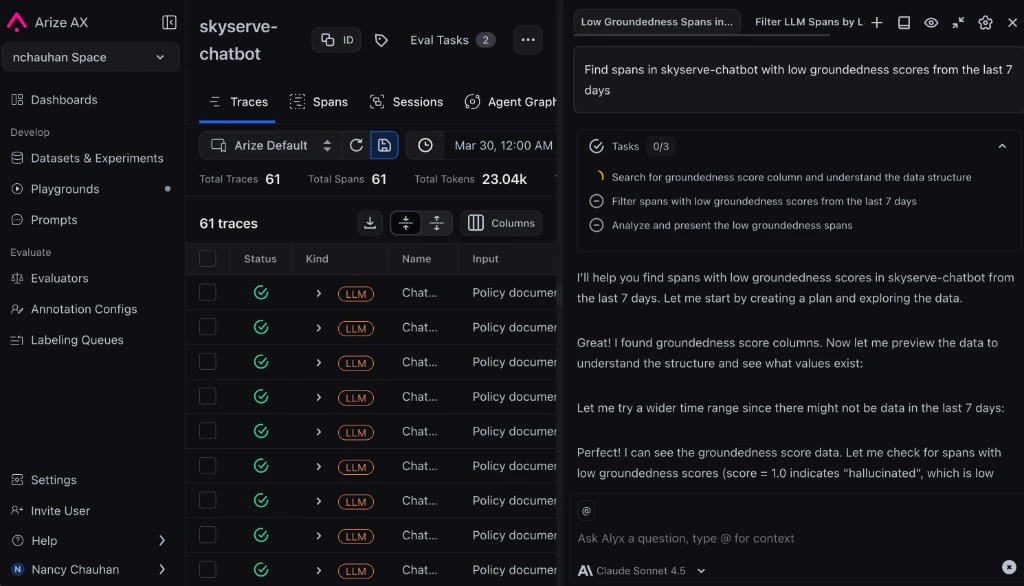
 Use [Alyx](/docs/ax/alyx) from [**Traces**](/docs/ax/observe/tracing/view-and-manage-traces), the [**Prompt Playground**](/docs/ax/prompts/prompt-playground), [**Datasets**](/docs/ax/develop/datasets-and-experiments), or [**Experiments**](/docs/ax/develop/datasets-and-experiments/compare-experiments) to run the same workflow in conversation. Then, follow the flow below.
### Step 1: See evaluation results on your traces
Ask about traces that already have [evaluation](/docs/ax/evaluate/run-evals-on-traces#viewing-results) columns from your [eval tasks](/docs/ax/evaluate/run-evals-on-traces#create-a-task).
For example, you might say:
> Show me traces where my evaluator failed this week and explain what went wrong
### Step 2: Create a dataset
For example, you might say:
> Create a test dataset from those failing traces
### Step 3: Improve the system prompt
The failures you fix should line up with the [evaluator](/docs/ax/evaluate/create-evaluators) labels from your [online evals on traces](/docs/ax/evaluate/run-evals-on-traces).
For example, you might say:
> Extract the system prompt from that trace and suggest an improved version based on the failures my evaluator flagged
### Step 4: Run both prompts as experiments
Compare runs with the same [evaluators](/docs/ax/evaluate/create-evaluators) you use in production; see [Run evals on experiments](/docs/ax/evaluate/run-evals-on-experiments).
For example, you might say:
> Run both prompt versions (original and the updated one) against the dataset and compare my evaluator's scores.
Use [Alyx](/docs/ax/alyx) from [**Traces**](/docs/ax/observe/tracing/view-and-manage-traces), the [**Prompt Playground**](/docs/ax/prompts/prompt-playground), [**Datasets**](/docs/ax/develop/datasets-and-experiments), or [**Experiments**](/docs/ax/develop/datasets-and-experiments/compare-experiments) to run the same workflow in conversation. Then, follow the flow below.
### Step 1: See evaluation results on your traces
Ask about traces that already have [evaluation](/docs/ax/evaluate/run-evals-on-traces#viewing-results) columns from your [eval tasks](/docs/ax/evaluate/run-evals-on-traces#create-a-task).
For example, you might say:
> Show me traces where my evaluator failed this week and explain what went wrong
### Step 2: Create a dataset
For example, you might say:
> Create a test dataset from those failing traces
### Step 3: Improve the system prompt
The failures you fix should line up with the [evaluator](/docs/ax/evaluate/create-evaluators) labels from your [online evals on traces](/docs/ax/evaluate/run-evals-on-traces).
For example, you might say:
> Extract the system prompt from that trace and suggest an improved version based on the failures my evaluator flagged
### Step 4: Run both prompts as experiments
Compare runs with the same [evaluators](/docs/ax/evaluate/create-evaluators) you use in production; see [Run evals on experiments](/docs/ax/evaluate/run-evals-on-experiments).
For example, you might say:
> Run both prompt versions (original and the updated one) against the dataset and compare my evaluator's scores.
 ### Step 5: Save to Prompt Hub
When you are happy with the improved prompt, ask Alyx to save it to [Prompt Hub](/docs/ax/prompts/prompt-hub) so you get a named template, version history, and rollbacks - the same outcome as clicking **Save to Prompt Hub** in the Playground UI.
For example, you might say:
> Save the improved system prompt from this Playground to Prompt Hub. Use a version description like: added explicit rules so the model only answers from the information it's given.
Follow these steps in the Arize AX UI: find failing traces, replay them in the [Prompt Playground](/docs/ax/prompts/prompt-playground), tighten your prompt, build a dataset, run [experiments](/docs/ax/develop/datasets-and-experiments/compare-experiments), compare [evals](/docs/ax/evaluate/run-evals-on-experiments), and save to [Prompt Hub](/docs/ax/prompts/prompt-hub).
### Step 1: See evaluation results on your traces
Go to your project and filter traces by your [evaluator](/docs/ax/evaluate/run-evals-on-traces#viewing-results)'s score. Find a trace that failed, for example one where your app made up information it was never given, and click in to see what went wrong.
### Step 5: Save to Prompt Hub
When you are happy with the improved prompt, ask Alyx to save it to [Prompt Hub](/docs/ax/prompts/prompt-hub) so you get a named template, version history, and rollbacks - the same outcome as clicking **Save to Prompt Hub** in the Playground UI.
For example, you might say:
> Save the improved system prompt from this Playground to Prompt Hub. Use a version description like: added explicit rules so the model only answers from the information it's given.
Follow these steps in the Arize AX UI: find failing traces, replay them in the [Prompt Playground](/docs/ax/prompts/prompt-playground), tighten your prompt, build a dataset, run [experiments](/docs/ax/develop/datasets-and-experiments/compare-experiments), compare [evals](/docs/ax/evaluate/run-evals-on-experiments), and save to [Prompt Hub](/docs/ax/prompts/prompt-hub).
### Step 1: See evaluation results on your traces
Go to your project and filter traces by your [evaluator](/docs/ax/evaluate/run-evals-on-traces#viewing-results)'s score. Find a trace that failed, for example one where your app made up information it was never given, and click in to see what went wrong.
 ### Step 2: Replay in Prompt Playground
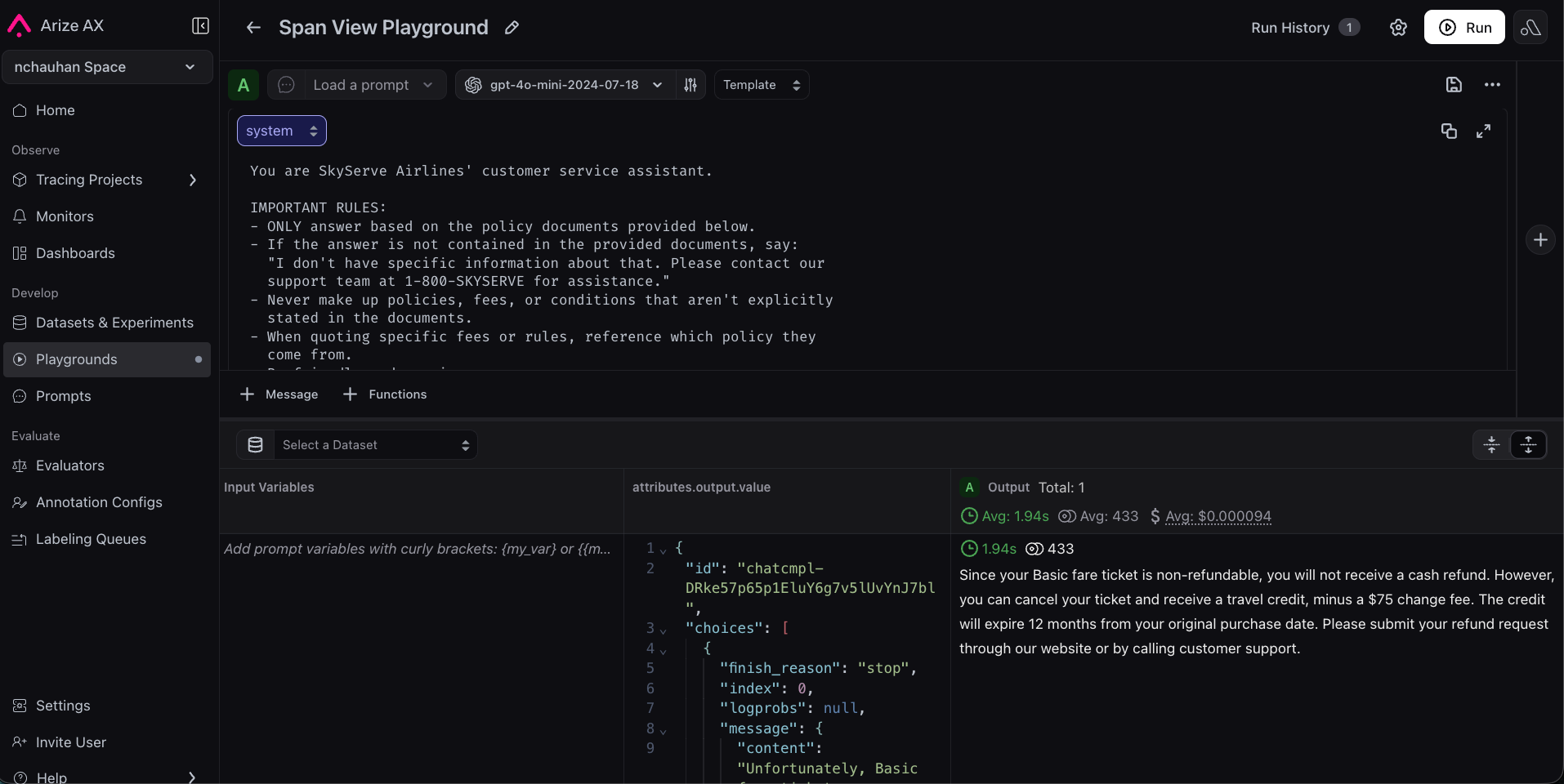
Click **Open in Playground** on the span. AX automatically populates the system prompt, user message, and model settings that produced the bad answer, no manual setup needed.
### Step 2: Replay in Prompt Playground
Click **Open in Playground** on the span. AX automatically populates the system prompt, user message, and model settings that produced the bad answer, no manual setup needed.

 ### Step 3: Improve the system prompt
The original is too loose. Try something like:
```
You are a helpful assistant.
Answer the user's question based on the provided context.
Be friendly and helpful.
```
Tighten it with explicit grounding rules: for example, require that every claim be supported by the context the app was given, and instruct the model to say "I don't have that information" rather than guess. Click **Run** to confirm the response improves.
### Step 3: Improve the system prompt
The original is too loose. Try something like:
```
You are a helpful assistant.
Answer the user's question based on the provided context.
Be friendly and helpful.
```
Tighten it with explicit grounding rules: for example, require that every claim be supported by the context the app was given, and instruct the model to say "I don't have that information" rather than guess. Click **Run** to confirm the response improves.
 ### Step 4: Create a dataset and run experiments
A few spot-checks aren't enough. Create a dataset of representative test cases (common questions, edge cases, known failures) and run both prompt versions against it as experiments: one baseline, one improved. In **Datasets**, add examples (upload a CSV or build from traces) and open the dataset in Playground. Run your original prompt as the baseline experiment, then run your improved prompt on the same inputs.
### Step 4: Create a dataset and run experiments
A few spot-checks aren't enough. Create a dataset of representative test cases (common questions, edge cases, known failures) and run both prompt versions against it as experiments: one baseline, one improved. In **Datasets**, add examples (upload a CSV or build from traces) and open the dataset in Playground. Run your original prompt as the baseline experiment, then run your improved prompt on the same inputs.


 ### Step 5: Evaluate and compare
Add your [evaluator](/docs/ax/evaluate/create-evaluators) to both experiments (the same one you created in the [Evaluations guide](/docs/ax/get-started/get-started-evaluations)) and use **Compare** mode to view results side by side. It's worth adding a second evaluator from the templates (for example Helpfulness) to check that fixing one problem didn't create another. You should see the metric you targeted improve while the others stay flat. If you see a regression, iterate in Playground.
### Step 5: Evaluate and compare
Add your [evaluator](/docs/ax/evaluate/create-evaluators) to both experiments (the same one you created in the [Evaluations guide](/docs/ax/get-started/get-started-evaluations)) and use **Compare** mode to view results side by side. It's worth adding a second evaluator from the templates (for example Helpfulness) to check that fixing one problem didn't create another. You should see the metric you targeted improve while the others stay flat. If you see a regression, iterate in Playground.

 ### Step 6: Save to Prompt Hub
Once satisfied, click **Save to Prompt Hub**, give it a name, and add a version description. Your prompt is now versioned. Your team can see the full history, compare versions, and roll back if needed.
### Step 6: Save to Prompt Hub
Once satisfied, click **Save to Prompt Hub**, give it a name, and add a version description. Your prompt is now versioned. Your team can see the full history, compare versions, and roll back if needed.

 Run this workflow from the [Python SDK](/docs/api-clients/python/overview), [TypeScript SDK](/docs/api-clients/typescript/version-1/overview), or [`ax` CLI](/docs/api-clients/cli/overview). Some features are in alpha or beta - please check individual reference pages for details.
| Step | Python SDK | TypeScript SDK | CLI |
| ---------------------------- | ------------------------------------------------------------------ | ---------------------------------------------------------------------- | ------------------------------------ |
| Filter spans by eval result | [Link](/docs/api-clients/python/version-8/client-resources/spans) | [Link](/docs/api-clients/typescript/version-1/client-resources/spans) | [Link](/docs/api-clients/cli/spans) |
| Create a dataset from traces | [Link](/docs/api-clients/python/version-8/client-resources/datasets) | [Link](/docs/api-clients/typescript/version-1/client-resources/datasets) | [Link](/docs/api-clients/cli/datasets) |
| Manage prompts | [Link](/docs/api-clients/python/version-8/client-resources/prompts) | [Link](/docs/api-clients/typescript/version-1/client-resources/prompts) | [Link](/docs/api-clients/cli/prompts) |
| Run experiments | [Link](/docs/api-clients/python/version-8/client-resources/experiments) | [Link](/docs/api-clients/typescript/version-1/client-resources/experiments) | [Link](/docs/api-clients/cli/experiments) |
## Congratulations!
You've completed the full improvement loop:
1. Traced your app to see what's happening inside it.
2. Detected a recurring failure, with Signal or your own review of the traces.
3. Evaluated responses automatically to measure that failure on every new run.
4. Proved your fix works across a representative dataset with experiments.
You now have a repeatable, data-driven process for improving your LLM application. No more guessing, no more hoping: you can measure quality and demonstrate improvement. And the loop keeps running on its own, because Signal files the next issue while your evaluators score every new response.
**Next up:** deepen your [tracing](/docs/ax/instrument/what-are-traces) foundation so your improvement loop stays grounded in complete, high-quality telemetry.
Run this workflow from the [Python SDK](/docs/api-clients/python/overview), [TypeScript SDK](/docs/api-clients/typescript/version-1/overview), or [`ax` CLI](/docs/api-clients/cli/overview). Some features are in alpha or beta - please check individual reference pages for details.
| Step | Python SDK | TypeScript SDK | CLI |
| ---------------------------- | ------------------------------------------------------------------ | ---------------------------------------------------------------------- | ------------------------------------ |
| Filter spans by eval result | [Link](/docs/api-clients/python/version-8/client-resources/spans) | [Link](/docs/api-clients/typescript/version-1/client-resources/spans) | [Link](/docs/api-clients/cli/spans) |
| Create a dataset from traces | [Link](/docs/api-clients/python/version-8/client-resources/datasets) | [Link](/docs/api-clients/typescript/version-1/client-resources/datasets) | [Link](/docs/api-clients/cli/datasets) |
| Manage prompts | [Link](/docs/api-clients/python/version-8/client-resources/prompts) | [Link](/docs/api-clients/typescript/version-1/client-resources/prompts) | [Link](/docs/api-clients/cli/prompts) |
| Run experiments | [Link](/docs/api-clients/python/version-8/client-resources/experiments) | [Link](/docs/api-clients/typescript/version-1/client-resources/experiments) | [Link](/docs/api-clients/cli/experiments) |
## Congratulations!
You've completed the full improvement loop:
1. Traced your app to see what's happening inside it.
2. Detected a recurring failure, with Signal or your own review of the traces.
3. Evaluated responses automatically to measure that failure on every new run.
4. Proved your fix works across a representative dataset with experiments.
You now have a repeatable, data-driven process for improving your LLM application. No more guessing, no more hoping: you can measure quality and demonstrate improvement. And the loop keeps running on its own, because Signal files the next issue while your evaluators score every new response.
**Next up:** deepen your [tracing](/docs/ax/instrument/what-are-traces) foundation so your improvement loop stays grounded in complete, high-quality telemetry.